Multi-Day Event Check-In: Day Passes, Re-Entry, and Limits
ScanSync Team · · 6 min read
Multi-day event check-in looks simple on paper: scan the ticket, let the person in. In practice, a full pass needs to work on every day, a day pass needs to work only once, and some guests step out for lunch and come back. This guide explains how to choose pass types, set clear re-entry rules, use allowed check-in counts and per-attendee overrides, and decide when wristbands make more sense than scanning, so your door team can apply the same rule to everyone.
Start with pass types
Before thinking about tools, write down what each ticket type is allowed to do. Common patterns:
| Pass type | Typical rule | What the door needs to know |
|---|---|---|
| Single-day pass | One entry, on one day | Has this ticket been used already? |
| Full pass | One entry per day, for every day | How many days has this ticket been used? |
| Day pass with re-entry | Several entries on one day | Is the guest coming back on the same day? |
| Staff, crew, speaker | Unlimited or very high entries | Should this person ever be stopped? |
Keeping the list short makes the rules easier to brief and easier to enforce. If a ticket type needs a long explanation, scanners will apply it inconsistently.
Write your re-entry rules in one sentence each
Re-entry causes more confusion at the door than almost anything else. Write each rule so a volunteer can remember it:
- "Full pass holders can enter once per day."
- "Day pass holders can leave and come back as long as they have a wristband."
- "Anyone with an amber result goes to the help desk."
Then decide who can make exceptions. A lost wristband, a guest who was scanned by mistake, or a day pass upgraded to a full pass all need someone with the authority to fix the record. Our complete guide to event check-in covers the basics of briefing scanners on rules like these.
Use allowed check-in counts
The cleanest way to handle multiple entries on one code is an allowed check-ins number for each ticket. Each scan uses one. When the count is used up, the next scan shows that the person is already checked in.
Here is how that maps to pass types in a worked example for a three-day conference:
- Set an event default that suits most guests. If most people bought a full pass, set the default to 3.
- Lower it for day passes. Give single-day tickets an allowed count of 1.
- Raise it for re-entry. If day pass holders can step out once and return, set 2.
- Go higher for crew and speakers who move in and out all day.
Two practical notes. First, a count tracks the number of entries, not which day they happen on. If a single-day pass must only work on Saturday, brief scanners to check the ticket type, or use a custom field such as "Day: Saturday" that scanners can see on the attendee record. Second, count-based rules are easiest when you scan once per day, at the main entrance, rather than at every room door.
Per-attendee overrides
Exceptions are normal. A sponsor adds a guest for one day, someone upgrades, or a volunteer needs full access. Rather than issuing a new ticket, override the allowed check-ins for that one person. Keep a note of who changed what, so the numbers in your post-event attendance report make sense later.
Wristbands vs scans
Wristbands and scanning are not competitors. They answer different questions.
Scanning tells you exactly who entered and when. It enforces limits automatically and gives you a timeline you can export. It is a little slower than a glance, and it needs a device at every entrance.
Wristbands are fast to check by eye, which suits a lot of in-and-out traffic, like a festival with food outside the gate. They do not tell you who came back, and they can be swapped or lost.
A common combined approach:
- Scan everyone at first entry each day.
- Hand out a day-colored wristband at that scan.
- Check wristbands, not tickets, for re-entry during the day.
- Send anyone with a missing wristband to the help desk for a lookup.
If entrances are outdoors or far from reliable Wi-Fi, plan for that too. Our guide to offline event check-in explains how to keep scanning when the connection drops.
Brief and rehearse the edge cases
Before day one, walk your team through these scenarios:
- A full pass holder scanned on day two shows amber. Is it a repeat on the same day, or an error?
- A guest says they were scanned by mistake on a day they did not attend.
- A day pass holder wants to upgrade at the door.
- A wristband is lost or cut off.
Decide in advance who handles each, and make sure that person has the right permissions to undo or reset a record. Scanning a QR code or barcode is quick, but these conversations are what slow a door down. For more on code formats, see QR codes vs barcodes for tickets and the general background on the QR code.
How ScanSync handles multi-day and re-entry
In ScanSync, you set allowed check-ins per event, for example 1 for single entry or 2 to 3 for multi-day or re-entry, and you can override the number for any individual attendee. You can also import an allowed check-ins column with your CSV, so day passes and full passes come in with the right limits from the start. Ticket type or day can be imported as a custom field and shown on the attendee record.
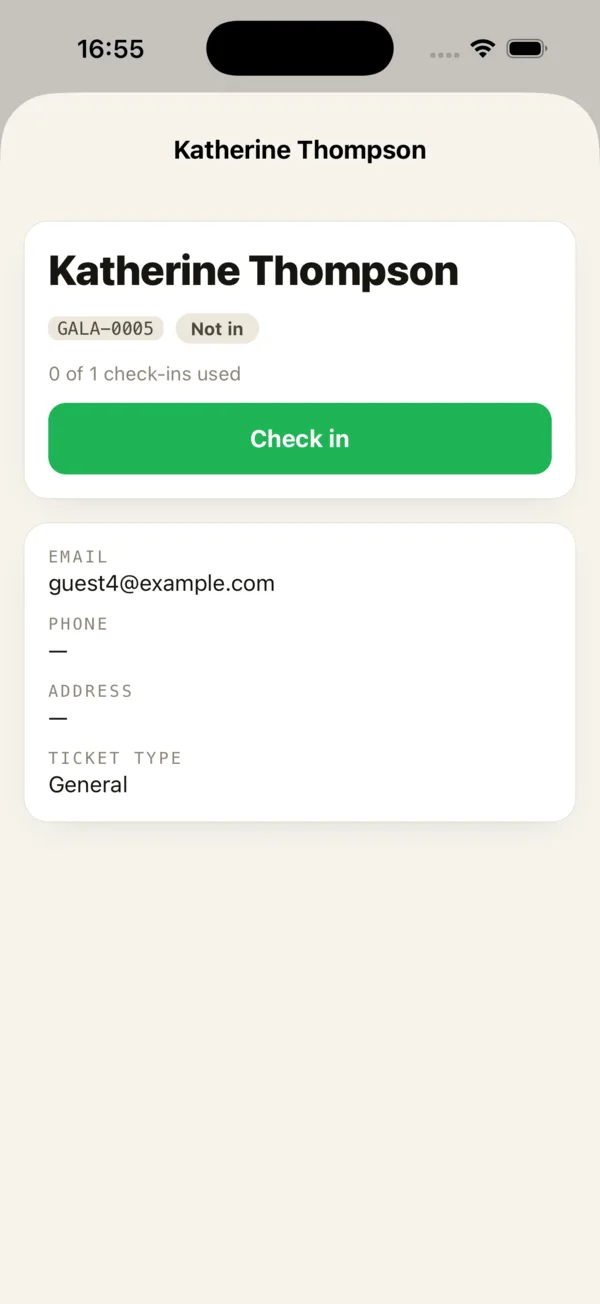 The attendee detail screen shows the code, status, and ticket type in one place.
Managers can undo a scan or reset an attendee, which handles the "scanned by mistake" case cleanly, while Scanner accounts can only scan and look up. The iPhone app keeps working offline and queues check-ins with a unique ID, so a scan is not counted twice when the phone reconnects. The live dashboard shows total scans alongside people checked in, which helps you see how much re-entry is happening each day.
Summary
Good multi-day event check-in starts with a short list of pass types and one-sentence re-entry rules. Allowed check-in counts let one code work for several entries, and per-attendee overrides cover the exceptions. Wristbands and scanning answer different questions, so many events scan once per day and use wristbands for re-entry. Rehearse the edge cases and give the right people the power to fix records.
Next steps
Set up a test event with a few day and full passes and try scanning each one more than once to see how your limits behave. Create a free account to try it, or see pricing if you are planning a larger multi-day event.
Frequently asked questions
How do you handle re-entry at an event? +
Either let a ticket be scanned more than once, by setting an allowed number of check-ins, or give each guest a wristband at first entry and check that on return. Decide which before the event and brief all scanners on the same rule.
Can one QR code work for a multi-day pass? +
Yes. Give the ticket an allowed check-in count that matches the number of days or entries, and each scan uses one. A one-day pass gets a lower count than a full pass.
Are wristbands better than scanning tickets? +
Wristbands are quick to check visually and suit frequent in-and-out movement, while scanning gives you an exact record of who came in and when. Many multi-day events scan on first entry each day and use wristbands for re-entry during the day.
Check people in the simple way
Upload your list, scan at the door, and watch arrivals live. Free for your first event.