Post-Event Attendance Report: What to Include and How to Use It
ScanSync Team · · 6 min read
The event is over, the chairs are stacked, and everyone wants to move on. But the check-in data you collected is the most honest record of what actually happened, and a short post-event attendance report is how you turn it into better decisions next time. This guide covers what to put in the report: registered versus attended, the arrival curve, breakdowns by ticket type, re-entries and lessons, plus how to export the data and use it to plan your next event.
Memory is unreliable after a busy event. The door felt chaotic, but was it? Did VIPs really turn up late, or did it just seem that way? A report answers these questions with data, and gives you something to compare against next time.
It's also useful for other people: sponsors want to know how many people came, venues want to know peak occupancy, and finance wants to know whether catering numbers were right. One clear page saves a dozen separate questions.
The report is only as good as your check-in process. If people slipped in unscanned, your numbers will be off. The complete guide to event check-in covers how to keep the door process consistent.
The headline: registered vs attended
Start with the simplest numbers:
- Registered: everyone on your final list.
- Attended: everyone checked in at least once.
- Attendance rate: attended ÷ registered.
- No-shows: registered − attended.
A worked example: 600 registered and 540 checked in gives a 90% attendance rate and 60 no-shows. If you're working on that last number, the guide to measuring and reducing no-shows explains what to do with it.
Be clear about what "registered" means. If people cancelled before the event, decide whether to remove them from the total and note your choice in the report, so next year's numbers are comparable.
Break it down by ticket type
A single attendance rate hides most of the story. If you imported your list with custom fields like Ticket Type, Sponsor or Table, break the numbers down by those fields.
| Ticket Type | Registered | Attended | Rate |
|---|---|---|---|
| Paid | 420 | 400 | 95% |
| Speaker | 30 | 29 | 97% |
| Comp / guest | 150 | 111 | 74% |
| Total | 600 | 540 | 90% |
Illustrative example figures.
In this example, comp tickets account for most of the no-shows. That might lead you to issue fewer of them, or add a confirmation step. During the event you can filter the dashboard by custom field to see these numbers live; afterwards, the export lets you calculate them precisely. The article on VIP lanes and badge pickup with custom fields explains how to set up segments in the first place.
The arrival curve
When people arrived is often more useful than how many. ScanSync's dashboard groups check-ins into 15-minute buckets over the last six hours, which gives you an arrival curve at a glance.
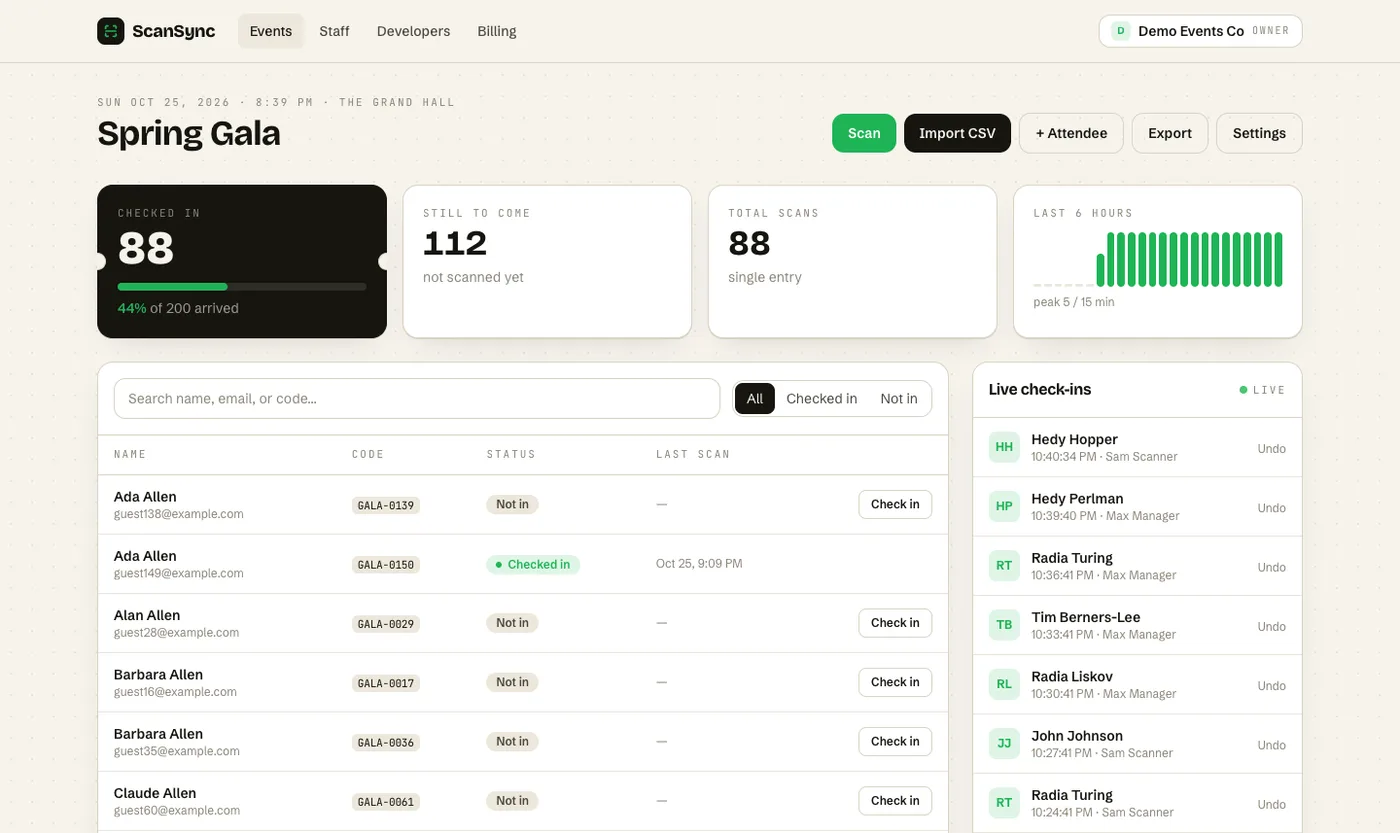 The check-ins timeline shows arrivals per 15 minutes, which is the basis of your arrival curve.
Take a screenshot of the timeline before you close the event, or rebuild it from the check-in times in the CSV export. Then look for:
- The peak. Which 15-minute window had the most arrivals, and how many?
- The shape. A sharp spike at doors suggests people arrived together, perhaps after a train or a shuttle. A long, flat curve suggests a relaxed start.
- Late arrivals. How many people arrived after the official start time?
The peak tells you how much door capacity you needed. As a rough example, if 120 people arrived in the busiest 15 minutes and each check-in takes around 6 seconds, one scanner can handle about 150 people in that window, so one well-placed scanner was just enough, and any delay at the door would have built a queue. This kind of estimate draws on basic queueing theory. The staffing guide has more on turning peak arrivals into staff numbers.
Re-entries and duplicate scans
Compare checked in with total scans. If total scans is noticeably higher, something is creating extra scans:
- Re-entries on multi-day events or events that allow people to step out. This is expected if you set allowed check-ins above 1.
- Duplicate attempts where someone tried to use a ticket already used, which shows as an amber "already checked in" result at the door.
- Undone scans where a manager corrected a mistake.
For a multi-day event, the CSV export's check-in counts per attendee show how many people came once, twice or every day. That's useful for deciding whether to sell day passes. See multi-day events and re-entry for how limits work.
Exporting the data
Export the attendee list as CSV, which includes check-in counts and times for each person. CSV is a plain, widely supported format (comma-separated values, described in RFC 4180) that opens in any spreadsheet tool.
A simple workflow:
- Export right after the event, before anyone edits the list.
- Save the raw file unchanged, and do your analysis in a copy.
- Pivot by custom field for ticket type breakdowns.
- Group check-in times into 15-minute buckets for the arrival curve.
- Delete or archive personal data you no longer need, in line with your privacy policy. The guide to attendee data privacy and GDPR basics covers the general principles; check with a lawyer for specifics.
If you use the API, you can also pull stats directly into your own reporting tools; see automating check-in with an API and webhooks.
Lessons and next-event decisions
The most valuable part of the report is the shortest. End with two or three specific changes, each tied to a number:
- "Peak was 120 arrivals in 15 minutes and we had one scanner. Add a second lane for the first 30 minutes."
- "Comp tickets had a 74% attendance rate. Send comp guests a confirmation request a week before."
- "Forty people arrived after the start. Open doors 15 minutes earlier."
Keep the same report structure for every event so you can compare them side by side. Over a few events, you'll build your own benchmarks, which are far more useful than any general figure.
Summary
A good post-event attendance report covers registered versus attended, breaks it down by ticket type, shows the arrival curve from 15-minute buckets, and explains any gap between check-ins and total scans. Export the CSV straight after the event and keep the raw file. Most importantly, finish with a few concrete changes for next time, each backed by a number from the data.
Next steps
If you'd like check-in data that's ready to report on, you can create a free account and try the dashboard and CSV export on your next event. You can read more about the dashboard on our features overview.
Frequently asked questions
What should a post-event attendance report include? +
At minimum: number registered, number attended, attendance rate, a breakdown by ticket type or segment, the arrival pattern over time, and a short list of lessons. Add re-entry counts for multi-day or re-entry events.
How do you calculate attendance rate? +
Divide the number of people checked in by the number registered. For example, 540 checked in out of 600 registered is a 90% attendance rate.
What format should attendance data be exported in? +
CSV is the most practical choice because it opens in any spreadsheet tool and can be imported into most other systems. Keep the raw export alongside your report so figures can be checked later.
Check people in the simple way
Upload your list, scan at the door, and watch arrivals live. Free for your first event.