Offline Event Check-In: How to Scan Tickets Without Wi-Fi
ScanSync Team · · 5 min read
Offline event check-in is the difference between a door that keeps moving and a queue that grinds to a halt when the connection drops. Venue signal is often weakest exactly when you need it, as hundreds of guests arrive with their phones. This article explains why connections fail, how offline scanning actually works, how to avoid letting people in twice, and how to test everything before the doors open.
Why venues lose signal
Even venues that advertise good Wi-Fi can let you down at the entrance. Common reasons include:
- Building materials. Concrete, steel, and basements block mobile signal.
- Crowds. Hundreds of phones trying to use the same mast or access point at once slow everything down.
- Venue Wi-Fi limits. Guest networks may have login pages, time limits, or limited capacity.
- Outdoor sites. Fields, parks, and rural venues may have patchy coverage to begin with.
- The entrance itself. Doors, foyers, and outdoor queues are often at the edge of the Wi-Fi range.
The safest assumption is that your connection will be unreliable at your busiest moment, and to choose tools and processes that keep working anyway.
How offline check-in works
An offline-capable check-in app works in three stages.
- Download before the event. While connected, each device saves a copy of the attendee list, including names, ticket codes, and how many check-ins each person is allowed.
- Scan locally. When a code is scanned with no connection, the app checks it against the saved list and shows the result immediately. The check-in is stored in a queue on the device.
- Sync when back online. When the connection returns, the app sends the queued check-ins to the server, which records them and updates every other screen.
The key detail is in step 3. Networks are unreliable, so the app may send the same check-in more than once if a request times out. To avoid counting a guest twice, each check-in should carry a unique ID. The server uses it to recognise a repeat and ignore it. This property is known as idempotence: doing the same thing twice has the same effect as doing it once.
Avoiding double entry when devices are offline
Offline mode has one limitation you need to plan around. A device that is offline only knows about its own scans. If a guest's ticket is scanned at door A and someone shares a screenshot of it at door B, both devices may accept it until they sync.
Here's how to reduce that risk:
- Assign lanes. Split guests by surname, ticket type, or entrance, so each ticket is likely to be scanned at only one device.
- Reconnect regularly. If one spot near the entrance has signal, let devices sync there every so often.
- Keep re-entry simple. If you allow re-entry, a higher check-in limit makes offline conflicts less of an issue. See multi-day events and re-entry.
- Review rejections. After syncing, check any offline scans the server rejected, for example because the ticket was already used elsewhere, and decide whether to follow up.
For most events, the small risk of an occasional double entry is far better than stopping the door entirely.
Choosing your connection plan
| Option | Pros | Cons |
|---|---|---|
| Venue Wi-Fi | Free, often fast when empty | Can slow down as guests arrive |
| Mobile data on staff phones | Independent of venue | Weak indoors and in crowds |
| Portable hotspot | Under your control | Needs charging, still relies on mobile signal |
| Offline mode | Works with no signal at all | Devices sync only when reconnected |
The best plan usually combines a connection with offline mode as the safety net. If you're using phones as scanners, our guide to using a phone as a ticket scanner covers battery and device setup.
Test before doors open
Never find out at 6:55 pm that offline mode doesn't work. Run this test at the venue, ideally at the actual check-in spot:
- Sign in on every device and open the right event while you still have a good connection.
- Make sure the attendee list has fully downloaded on each device.
- Turn on flight mode.
- Scan a test ticket and confirm you get a green result.
- Scan the same ticket again and confirm you get an "already checked in" result.
- Look up a test guest by name and check them in manually.
- Turn flight mode off and confirm the check-ins appear on the dashboard.
- Undo or reset the test check-ins so your real numbers start at zero.
If you have time, repeat steps 3 to 7 with two devices to see how they behave when both are offline. For a wider pre-event list, see the conference registration desk checklist.
How ScanSync works offline
ScanSync's iPhone app saves the attendee list on the phone, so staff can keep scanning and looking up guests by name, code, email, or custom field when the signal drops. Check-ins made offline are queued and sent automatically when the phone is back online, each with a unique ID so nothing counts twice. Any offline scans the server rejects are listed for review, so you can see exactly what happened.
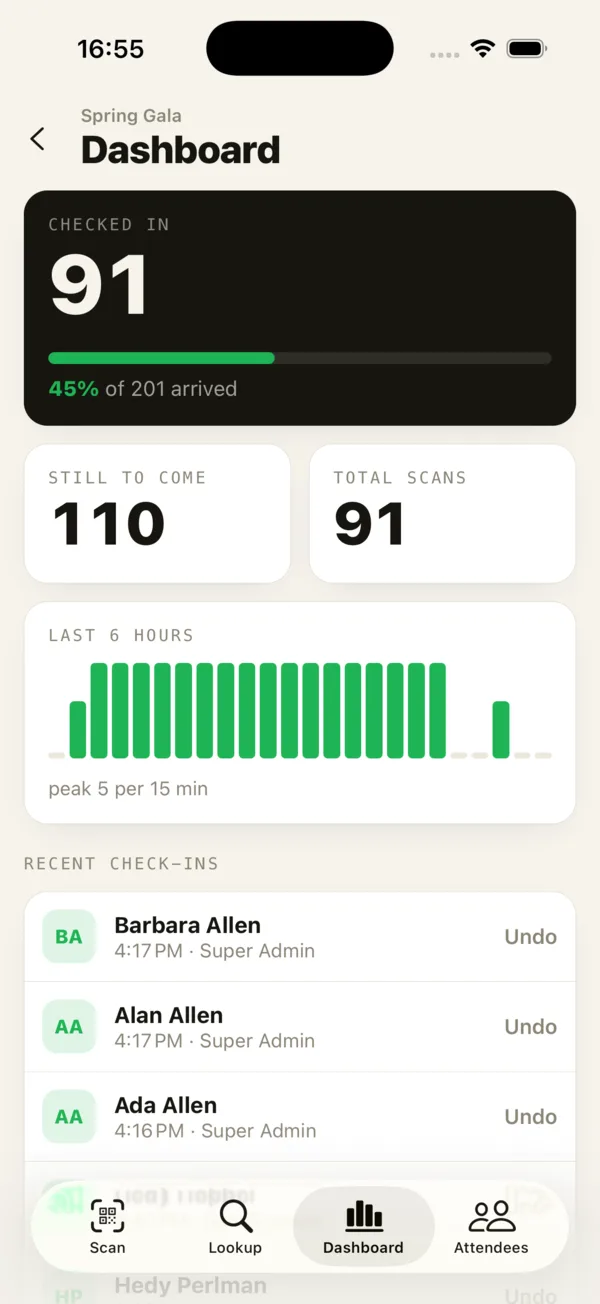 Once phones sync, the dashboard updates for everyone watching.
Once synced, check-ins appear on the live dashboard on every open screen. Managers can undo any mistaken scans, and scanner accounts never receive attendee emails, phone numbers, or addresses, which limits what's stored on door staff phones. You can read more about the mobile app. For the full process from start to finish, see our complete guide to checking in attendees at an event.
Summary
Venue connections often fail at the busiest moment, so plan for check-in to work without them. Offline check-in stores the attendee list on each device, checks tickets locally, and syncs queued check-ins later using unique IDs so nothing is counted twice. Because offline devices can't see each other's scans, assign lanes and review any rejected check-ins after syncing. Always test in flight mode at the venue before doors open.
Next steps
The easiest way to feel confident is to try it yourself. Create a free account, import a few test guests, put your phone in flight mode, and scan. If you have questions about your venue setup, you can get in touch.
Frequently asked questions
Can you check in attendees without internet? +
Yes, if your check-in app supports offline mode. The attendee list is downloaded to the device in advance, scans are checked against it locally, and check-ins are sent to the server when the connection returns.
How do you stop double entry when scanning offline? +
Each offline device only knows about its own scans until it syncs, so the same ticket could be accepted at two devices. Reduce the risk by assigning lanes, reconnecting devices regularly, and reviewing any check-ins the server rejects after syncing.
Should I use the venue Wi-Fi or mobile data for check-in? +
Use whichever is more reliable in the actual check-in area, and have the other as a backup. Venue Wi-Fi often slows down once guests start connecting, so test both at the venue.
Check people in the simple way
Upload your list, scan at the door, and watch arrivals live. Free for your first event.