How to Check In Attendees at an Event: A Complete Guide
ScanSync Team · · 7 min read
Knowing how to check in attendees at an event is one of those skills that looks simple until the first busy wave of guests reaches the door. A good check-in is quick, friendly, and accurate: everyone who should get in does, nobody gets in twice, and you know exactly who arrived. This guide walks through the whole process in order, from preparing your list weeks ahead to reviewing the numbers afterwards, with links to deeper guides on each stage.
Step 1: Prepare a clean attendee list
Everything downstream depends on the list. Before you think about scanners or staffing, make sure you have one spreadsheet with one row per person and clear columns.
A good list includes:
- Full name (or first and last name in separate columns)
- Email address, so you can send tickets and follow up
- A unique ticket code for each person, if your ticketing platform already issued one
- Anything staff need at the door, such as ticket type, table number, or dietary needs
Remove duplicates, fix obvious typos, and save the file as UTF-8 CSV to avoid broken accented names. Our guide to importing an attendee list from CSV without errors covers column naming, encodings, and the most common mistakes in detail. If your guests registered through another system, see how to move your list from a ticketing platform so existing tickets keep working.
Step 2: Choose your check-in method and tools
There are three common approaches, and many events combine them.
| Method | Best for | Trade-off |
|---|---|---|
| Paper list and pen | Very small, informal events | Slow to search, no live count, easy to double-admit |
| Name lookup on a device | Guest lists without tickets | Faster than paper, still requires typing |
| Scanning codes | Most ticketed events | Fastest per person, needs codes sent in advance |
For scanning, you will choose between QR codes and traditional barcodes. QR codes hold more data and scan more reliably from phone screens, while many ticketing platforms still issue linear barcodes. Read our comparison of QR codes vs barcodes for tickets before you send anything out.
When comparing software, focus on what matters on the night: speed, a clear result screen, offline support, and a live count. Our list of the features that matter in a check-in app explains each one. If your event is small, it is also worth knowing when free check-in software is enough.
Step 3: Decide your rules before the doors open
Ambiguity at the door causes most arguments. Write these decisions down and brief your team:
- How many times can each ticket be used? One for a single-entry event, more for multi-day passes or re-entry. See handling multi-day events and re-entry.
- What happens if a code was already scanned? Decide who can override and how to check whether it was a genuine mistake.
- What if someone isn't on the list? Have a named person who can approve walk-ins or direct them to the right place.
- What do VIPs, speakers, or press get? Separate lanes or badge pickup rules work well; see VIP lanes and badge pickup with custom fields.
Step 4: Set up the door
Plan the entrance around your busiest arrival window. Most events see a sharp peak shortly before the official start time, so a setup that copes with the average will still produce a queue.
A rough worked example: if one scan takes about 5 seconds per person, one scanning station can handle around 12 people per minute in ideal conditions. If you expect 300 people in the 20 minutes before start, that is 15 people per minute, so you need at least two stations, and three gives you room for questions and lookups. The idea behind this is Little's law, which links arrival rate, time per person, and queue length. Our event check-in staffing guide goes deeper on how many people you need.
Door setup checklist
- Charged phones or tablets, plus power banks or a charging point
- Every device signed in and showing the right event
- A test scan done on each device with a real ticket
- Clear signs: "Have your ticket ready" and separate lanes if needed
- A help desk or person for problems, away from the main queue
- A plan for weak signal; read checking people in without Wi-Fi
For conferences with badges and lanyards, use our conference registration desk checklist. For more ideas on shortening the queue itself, see tactics for shorter entry lines.
Step 5: Run check-in and wrap up
During the event
Once doors open, the job is to keep people moving and keep your numbers accurate.
- Scan first, chat after. Greet people, scan, and direct them in. Save longer questions for the help point.
- Trust the result colour. A clear green, amber, or red result tells staff what to do without reading small text.
- Use lookup for missing tickets. Search by name or email, confirm identity, and check in manually.
- Fix mistakes immediately. If someone was checked in by accident, undo it right away so the count stays correct.
- Watch the live count. A dashboard showing who has arrived and who is still to come helps you decide when to move staff or start the programme. See live attendance tracking.
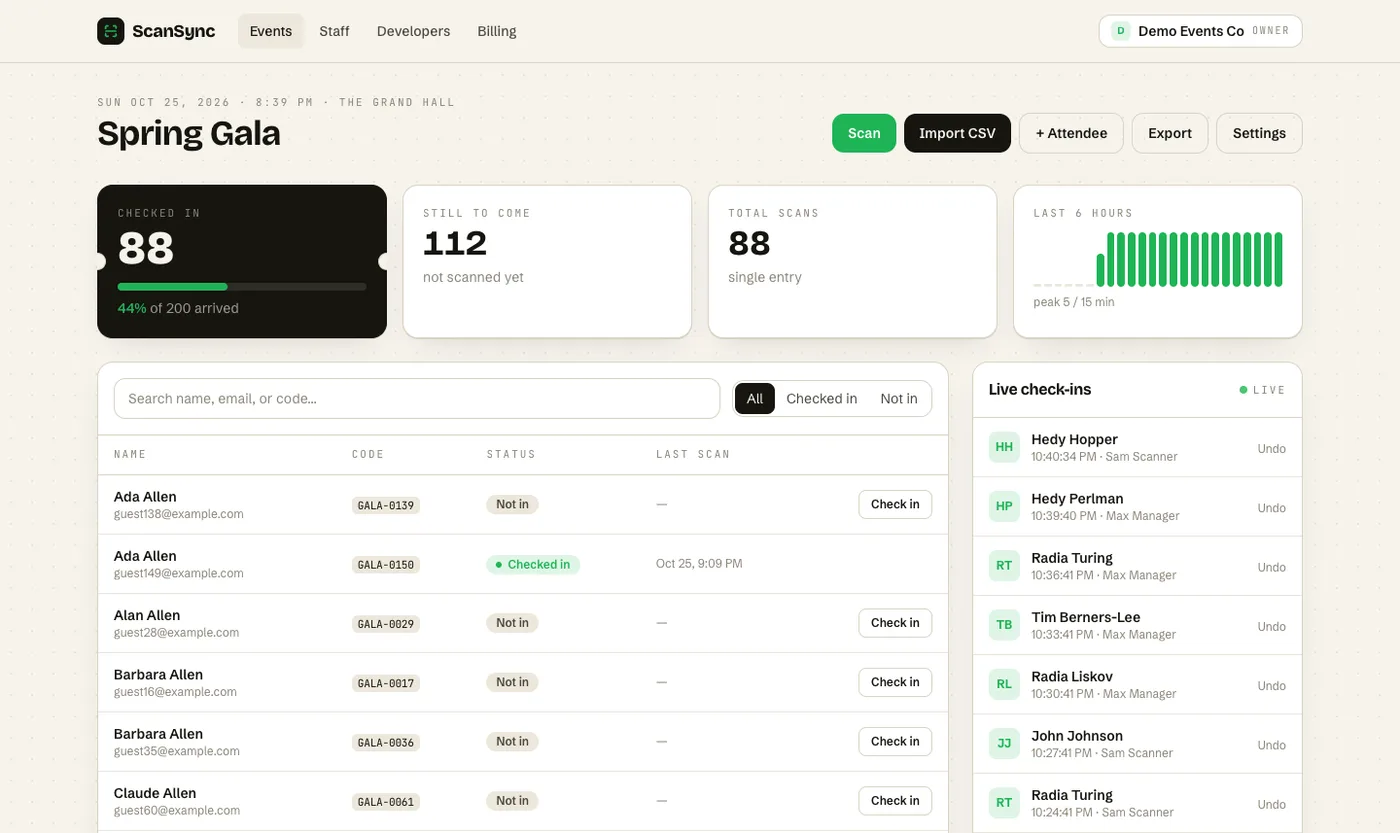 The live dashboard updates as people arrive.
After the doors close
When the doors close, export the attendee list with check-in times. This tells you your real attendance, your no-show rate, and when people actually arrived, which is exactly the information you need to plan staffing next time. Our guides on post-event attendance reports and measuring and reducing no-shows show what to look for. Also think about data: delete or archive attendee details you no longer need, following the basics in our attendee data privacy and GDPR guide.
For larger public events, crowd safety at entrances matters too. The UK Health and Safety Executive's event safety guidance is a useful general reference for planning entry points and queues.
How ScanSync fits in
ScanSync was built around the steps above. You import your list from CSV, with columns matched automatically, and anyone without a code gets a QR code generated. Existing ticket barcodes from other platforms keep working once imported. Staff scan with the iPhone app or a web browser, including USB or Bluetooth barcode scanners, and can look people up by name. The phone app keeps working offline and syncs when the connection returns, without counting anyone twice.
You can set allowed check-ins per event and override them per person, and managers can undo a scan or reset an attendee. The live dashboard shows checked in, still to come, and arrivals over time on every open screen, and you can export a CSV when you're done. Scanner accounts never see attendee emails, phone numbers, or addresses.
Summary
Checking in attendees well comes down to preparation and clear rules. Start with a clean list and unique codes, choose a method that suits your event size, and decide how many check-ins each ticket allows. Plan your door around the busiest arrival window, keep a name lookup ready for missing tickets, and watch a live count during the event. Afterwards, export your data so the next event is easier to plan.
Next steps
If you'd like to try this with your next event, you can create a free account and import a test list in a few minutes. The free plan covers one active event with up to 100 attendees, and you can see pricing for larger events.
Frequently asked questions
What is the fastest way to check in attendees at an event? +
Scanning a unique QR code or barcode for each attendee is usually fastest, because staff don't need to search a list. Pair scanning with a quick name lookup for people who arrive without their ticket.
Do I need special hardware to check in guests? +
No. A smartphone with a check-in app can scan codes with its camera. Dedicated USB or Bluetooth barcode scanners are useful at very busy desks but are optional.
How early should check-in open before an event starts? +
A common rule of thumb is to open the doors 30 to 60 minutes before the start, depending on how many people you expect and how many staff you have. Larger events with badge printing or bag checks usually need the longer window.
Check people in the simple way
Upload your list, scan at the door, and watch arrivals live. Free for your first event.