Phone Ticket Scanner: How to Check In Guests With Your Phone
ScanSync Team · · 7 min read
A phone ticket scanner is often the simplest way to run a door: no extra hardware to buy, nothing to ship, and every volunteer already knows how to hold a phone. But a phone camera is not a purpose-built scanner, and small details such as overhead lighting, a dim attendee screen, or a 20% battery can slow a line to a crawl. In this guide you'll learn when a phone is the right tool, how to handle the common problems, and when to switch to a laptop with a dedicated scanner instead.
When a phone is the right scanner
Phones shine when you need flexibility. Staff can walk the line, check people in at a side entrance, or help someone at a table without dragging a laptop around. They are a good fit for:
- Small and medium events where one or two doors handle the crowd
- Pop-up venues, outdoor events, and anywhere without a fixed desk
- Roaming staff who check in latecomers or VIPs away from the main door
- Events where volunteers bring their own devices
A phone camera reads a printed ticket or a code on another screen in about the time it takes to line it up. For most crowds, the bottleneck is not the scan itself but the conversation around it: finding the ticket, answering a question, handing out a wristband. If you want the full picture of how scanning fits into the door process, start with the complete guide to event check-in.
Phone camera vs dedicated scanner
Dedicated barcode readers use a laser or imaging engine tuned for one job. They read instantly, ignore most glare, and keep working all day on a single charge. A phone does many jobs reasonably well instead of one job perfectly.
| Phone camera | USB/Bluetooth scanner + laptop | |
|---|---|---|
| Setup cost | Usually none | Scanner purchase, laptop, table |
| Mobility | Walk anywhere | Fixed desk |
| Speed per scan | Fast once lined up | Near-instant trigger read |
| Printed tickets | Good | Excellent |
| Codes on screens | Good, sensitive to glare | Varies by scanner model |
| Battery | Drains with camera and screen on | Laptop is the main limit |
| Lookup by name | On the phone | On the laptop, with a bigger screen |
Neither is "better" in general. Many events mix both: a laptop at the main desk and phones for overflow, side doors, and roaming staff.
Getting reliable scans: lighting, glare, and distance
Most scanning problems come down to light. A few habits fix the majority of them.
Low light
Dark venues, evening outdoor events, and dim hallways make camera scanning harder. Use the torch (flashlight) built into the scanning screen for printed tickets and paper badges. For codes on a phone screen, the torch usually makes things worse, because the screen already emits light and the flash adds reflection. Turn it off for screens and on for paper.
Glare on attendees' phones
Overhead lights reflecting off a glossy screen are the most common cause of a code that "won't scan." Train staff to say the same short script every time:
- "Could you turn your brightness up?"
- "Tilt it slightly toward me."
- Hold the scanning phone still, roughly a hand's width away, and let the camera focus.
If a code still won't read, don't keep trying. Switch to typing the code or looking the person up by name. A ten-second fallback beats a minute of waving phones at each other.
Damaged or tiny codes
Cracked screens, heavily zoomed screenshots, and codes printed too small can all fail. QR codes include error correction, which helps with minor damage (see the QR code overview for how that works), but linear barcodes are less forgiving. If you're choosing a format for your tickets, our comparison of QR codes vs barcodes for event tickets covers the trade-offs.
Battery, mounting, and other practical setup
A phone that dies mid-rush is worse than having no phone at all. Plan power like you plan staffing.
Battery checklist
- Start the event with every scanning phone at full charge.
- Bring one power bank per scanning phone, plus a spare.
- Pack short cables so staff can scan while charging.
- Lower screen brightness slightly on the scanning phone if it's still readable.
- Close other apps, and turn off background video or music.
- Rotate phones onto charge during quiet periods.
Mounting and handling
For a fixed spot, a simple phone stand or clamp mount lets staff keep both hands free and lets attendees hold their own phone up to the camera. For roaming staff, a lanyard or wrist strap reduces drops. Whatever you choose, make sure the camera lens isn't covered by a case edge or a mount arm, and wipe the lens before doors open. A smudged lens causes more failed scans than people expect.
When to use a laptop with a USB or Bluetooth scanner instead
A handheld scanner connected to a laptop behaves like a keyboard: it "types" the code and presses Enter. That makes it fast and predictable. Consider it when:
- You have a fixed registration desk and a long, steady queue
- Most tickets are printed, such as badges or paper tickets mailed in advance
- Staff need a large screen to look people up, edit details, or handle questions
- You expect to scan for many hours and don't want to manage phone batteries
If you're planning how many desks and people you need for a large event, our event check-in staffing guide walks through the maths, and tactics for shorter entry lines shows where extra hardware actually helps.
Using ScanSync as a phone ticket scanner
ScanSync's iPhone app (Android is coming soon) is built around a single Scan tab: point the camera at a code, or type it in if the camera can't read it. Each scan gives a big green, amber, or red result with a vibration, so staff can keep their eyes on the line rather than squinting at small text. Green means checked in, amber means already checked in, and red means the code wasn't found or isn't allowed.
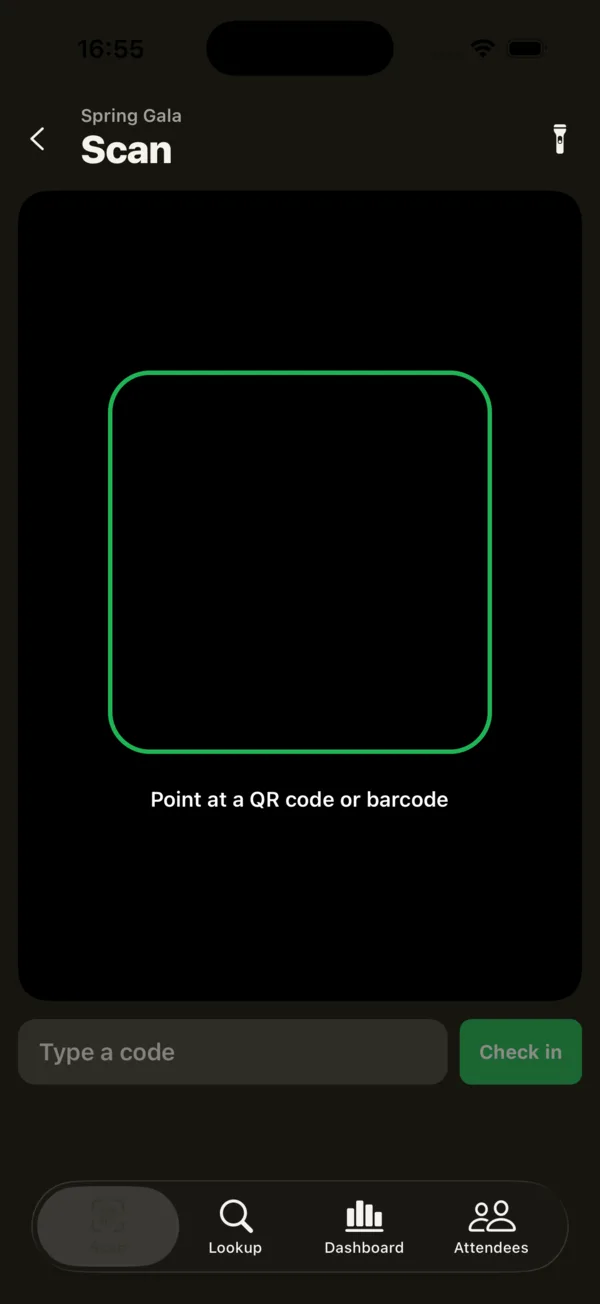 The Scan tab: camera viewfinder, torch, and a box to type a code when the camera can't read it.
A few details that matter at the door:
- Torch control sits right on the scan screen for dark venues and printed tickets.
- Lookup finds people by name, code, email, or custom field values when a ticket is missing.
- Many formats: QR, Code 128, Code 39, Code 93, EAN, UPC, PDF417, Aztec, Data Matrix, ITF-14, and Codabar. Barcodes from your existing tickets keep working once you import them.
- Offline mode: the attendee list is saved on the phone, and check-ins made without a connection are queued and sent when you're back online. Each one carries a unique ID so nothing is counted twice. Read more in our guide to checking people in without Wi-Fi.
If you prefer a desk setup, the ScanSync web app works with USB and Bluetooth scanners, and it can also use the device camera in browsers that support the Barcode Detection API. Phones and laptops check in against the same list, so you can mix them freely.
Summary
A phone ticket scanner is enough for most events, provided you plan for its weak spots. Use the torch for paper and turn it off for screens, ask guests to raise brightness and tilt their phones, and carry power banks for every device. Keep a fast fallback, such as typing the code or looking up by name, so one stubborn ticket never holds up the line. For fixed desks with long queues and printed tickets, a laptop with a USB or Bluetooth scanner is often the faster option, and mixing both works well.
Next steps
Try a test run before your event: import a few sample attendees, print a couple of tickets, and scan them with your phone under the lighting you'll actually have. You can create a free account to do this, or read about the ScanSync mobile app first.
Frequently asked questions
Can I use my phone as a ticket scanner? +
Yes. Any recent smartphone with a working camera can scan QR codes and common ticket barcodes using a check-in app. Plan for good lighting, enough battery, and a backup way to look people up by name.
Is a phone or a dedicated barcode scanner faster? +
A handheld barcode scanner is usually a little quicker per scan, especially for printed tickets, because it reads instantly without framing a camera. A phone is more flexible and lets staff move around, which often matters more than raw speed.
Why won't my phone scan a ticket on someone else's screen? +
The usual causes are low screen brightness, glare from overhead lights, or a cracked screen. Ask the guest to raise their brightness, tilt the phone a few degrees, and hold it still about a hand's width from your camera.
Check people in the simple way
Upload your list, scan at the door, and watch arrivals live. Free for your first event.