Conference Registration Desk Checklist: Setup to Teardown
ScanSync Team · · 6 min read
A conference registration desk is the first thing attendees see, and it shapes how they feel about everything that follows. When it works, nobody notices. When it does not, the opening keynote starts with half the room still in line. This printable-style checklist covers what to do in the weeks before, on setup morning, during the rush, and after the doors close, along with a complete equipment list and a simple plan for badge pickup.
Before the event
Most desk problems start here, so give this phase real time.
Two to four weeks before
- [ ] Confirm the venue's registration space, power outlets, and Wi-Fi details.
- [ ] Decide desk layout: number of lanes, a help desk, a badge pickup area, and an accessible counter.
- [ ] Export your attendee list from your registration or ticketing system.
- [ ] Clean the list: remove duplicates, fix name spelling, and check for missing emails or codes.
- [ ] Import the list into your check-in tool and run a test scan with a few codes.
- [ ] Decide whether badges will be pre-printed or printed on demand.
- [ ] Send each attendee their QR code or ticket barcode by email.
- [ ] Recruit and schedule desk staff, including breaks and a backup person.
If you are moving your list from another system, our guide to moving your list from a ticketing platform walks through the export and import steps. For estimating the number of lanes, see the event check-in staffing guide.
The week before
- [ ] Send a "know before you go" email with desk opening times, location, and a reminder to have the code ready.
- [ ] Print badges (if pre-printing) and sort them alphabetically by last name into labeled boxes.
- [ ] Print signage: "Registration," "Have your code ready," "Help desk," "Speakers and sponsors," and lane letters.
- [ ] Print one backup attendee list, stored securely, in case of total device failure.
- [ ] Write a one-page desk brief with what each scan result means and who to call for problems.
- [ ] Install the check-in app on every phone or tablet and log each staff member in.
Equipment list
Check every item off at setup, not from memory.
| Item | Quantity guide | Notes |
|---|---|---|
| Phones or tablets for scanning | One per lane plus one spare | Fully charged, app installed |
| Laptop for the help desk | One or more | For lookups and walk-ins |
| USB or Bluetooth barcode scanner | Optional, one per laptop | Fast for printed tickets |
| Power strips and extension cords | Enough for every device | Tape down cables |
| Chargers and power banks | One per device | Label them |
| Badge holders and lanyards | Attendance plus extra | For badges and walk-ins |
| Blank badges and markers | A small stack | For last-minute name changes |
| Signage and stands | One set per lane | Large, high-contrast text |
| Pens, tape, scissors, zip ties | A small kit | The usual emergency supplies |
| Backup printed list | One | Store away from the public |
| Water for staff | Plenty | Long mornings |
A badge is usually the main thing attendees walk away with, so keep extra holders and blanks within reach.
Setup morning
- [ ] Arrive early. Allow plenty of time before the desk opens.
- [ ] Lay out lanes, help desk, and badge pickup in the order attendees will move through them.
- [ ] Check that every device is charged, logged in, and on the right event.
- [ ] Connect to Wi-Fi, and confirm your tool can keep working if it drops.
- [ ] Scan a test code on every device, then undo it.
- [ ] Put signs where the line forms, not just on the desk.
- [ ] Make sure the accessible counter has a step-free route and a lower surface. The WCAG guidelines cover digital accessibility, and the same mindset applies to signs and the physical desk: clear, readable, and easy to reach.
- [ ] Brief the team for five minutes: roles, results, escalation, break times.
During registration
Badge pickup flow
- Attendee shows their code, and the scanner checks them in.
- The scanner reads out the last name, and a runner pulls the badge from the alphabetized box.
- Anything unusual (no badge, wrong name, unpaid) goes to the help desk.
If you print on demand, the help desk doubles as the print station. Either way, keep speakers and sponsors in a separate lane so their extra steps do not hold up general registration. Using custom fields for that split is explained in VIP lanes and badge pickup with custom fields.
Keep the line moving
- [ ] Walk the line and remind people to open their codes.
- [ ] Send problems to the help desk immediately.
- [ ] Watch arrivals and open another lane before the line grows.
- [ ] Rotate staff for breaks after the main rush.
Our tactics to reduce check-in lines have more ideas for busy mornings.
After registration closes
- [ ] Check that any offline devices have synced their check-ins.
- [ ] Review any scans that were rejected and fix the records.
- [ ] Export attendance with check-in times.
- [ ] Count and store leftover badges, which tell you who did not show.
- [ ] Note what went wrong and what to change for day two or next year.
- [ ] Shred or securely store the printed backup list.
How ScanSync fits the registration desk
ScanSync covers the scanning, lookup, and reporting parts of this checklist. You import attendees from CSV with columns matched automatically, and anyone without a code gets a QR code generated. Existing ticket barcodes from other platforms keep working if you import them, and supported formats include QR, Code 128, PDF417, Aztec, Data Matrix, and more.
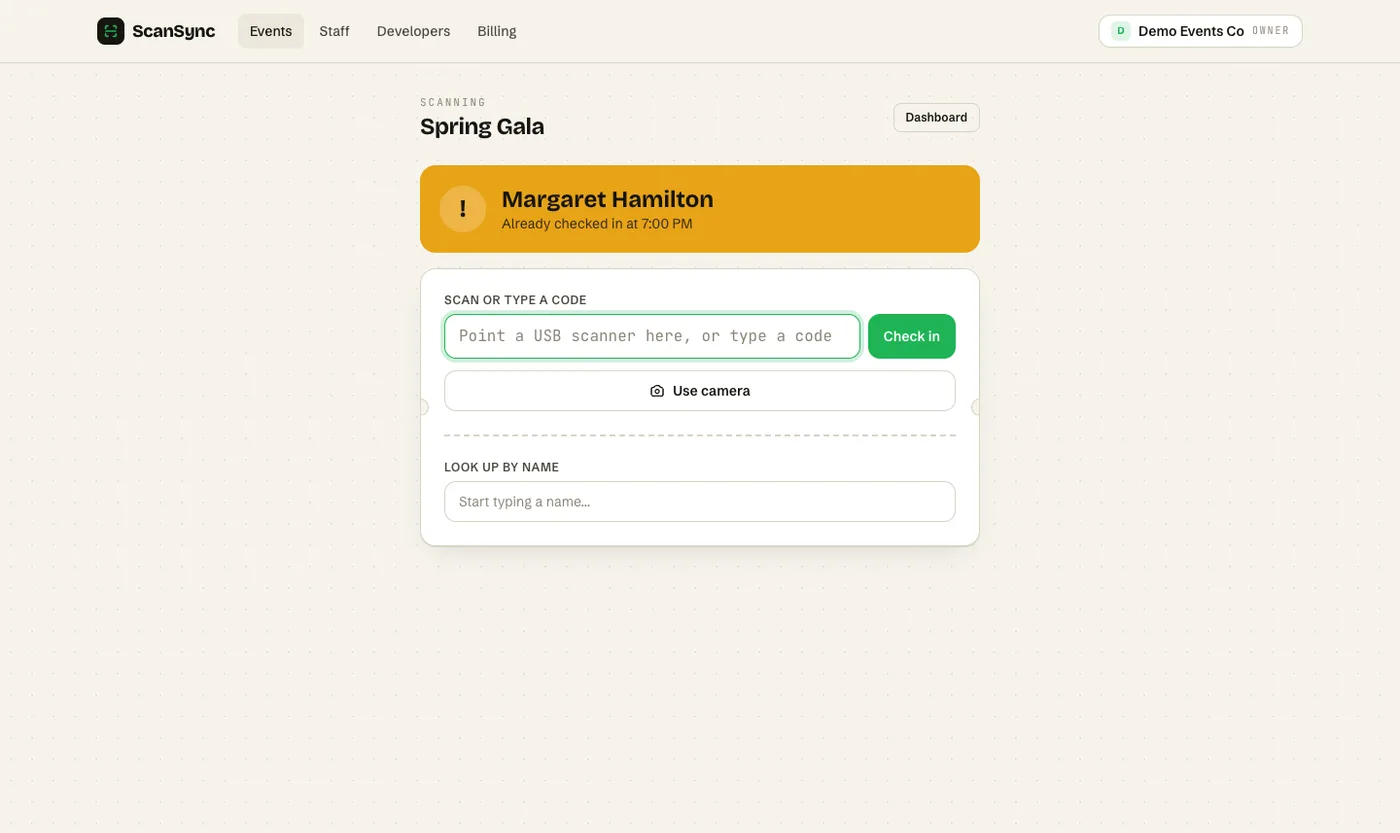 The web scan page accepts a USB or Bluetooth barcode scanner, the device camera, or a name lookup.
At the desk, the web app works with USB or Bluetooth barcode scanners that type the code and press Enter, which suits a laptop at the help desk. Lane staff can use the iPhone app, which shows a big color-coded result, works offline with the saved attendee list, and lists any offline scans the server rejected for review. The live dashboard shows checked in, still to come, and check-ins per 15 minutes on every open screen, and you can export a CSV of attendees with check-in counts and times at the end of each day. If your venue Wi-Fi is unreliable, read our guide to offline event check-in.
Summary
A smooth conference registration desk is mostly preparation. Clean and test your attendee list weeks ahead, print and sort badges, and check off every piece of equipment at setup. On the day, separate fast scanning, badge pickup, and problem solving, and watch arrivals so you can open lanes early. Close each day by syncing devices, reviewing exceptions, and exporting attendance.
Next steps
Print this checklist, adapt it to your venue, and run a test with a handful of codes before the event. To try scanning and badge pickup with your own list, create a free account or see pricing for larger conferences.
Frequently asked questions
What do you need at a conference registration desk? +
At minimum: devices to scan or look up attendees, power and spare cables, pre-printed badges sorted for quick pickup, clear signage, pens, and a help desk for problems. A printed backup list is a sensible extra.
How early should the registration desk open? +
Open early enough that the first session does not start with a line. Many conferences open registration well before the opening keynote and keep a smaller desk open throughout the day.
How do you organize badge pickup at a conference? +
Either pre-print badges and sort them alphabetically by last name, or print on demand after scanning. Pre-printing is faster at the desk; printing on demand handles late registrations and name changes.
Check people in the simple way
Upload your list, scan at the door, and watch arrivals live. Free for your first event.