How to Export an Attendee List From a Ticketing Platform
ScanSync Team · · 6 min read

If you sell tickets through one system and check people in with another, the bridge between them is usually a spreadsheet. Knowing how to export an attendee list from a ticketing platform and prepare it properly is what keeps the door running smoothly. In this guide you'll learn how to get a clean export, find the column that holds the ticket barcode, make sure tickets already in attendees' inboxes keep scanning, and handle late registrations without creating duplicates.
Step 1: find the export and choose the right format
Every ticketing platform puts the export in a slightly different place, but it's usually under a section called something like Attendees, Orders, Guests, or Reports. Look for a Download or Export button.
When you have options, choose:
- CSV format. It's plain text, opens in any spreadsheet program, and is what most check-in tools expect. The comma-separated values format is simple and widely supported.
- One row per ticket, not per order. If one buyer bought four tickets, you want four rows, each with its own code.
- All ticket types, including complimentary, staff, and speaker tickets, unless you plan to manage those separately.
- All statuses you want admitted. Some exports exclude pending or manually added attendees by default.
Save the original download somewhere safe and work on a copy. If something goes wrong, you can always start again from the original.
Step 2: understand the columns
Open the copy and look at the headers. A typical export has more columns than you need. Group them into three buckets:
| Bucket | Typical columns | What to do |
|---|---|---|
| Needed at the door | Name, ticket code or barcode, ticket type | Keep |
| Useful for lookup or segments | Email, company, table, session, dietary | Keep if the door uses them |
| Not needed for check-in | Billing address, payment method, marketing answers | Leave out |
Leaving out columns you don't need is good practice for privacy as well as tidiness. Our article on attendee data privacy and GDPR basics explains why collecting less is safer.
Step 3: find the barcode column
This is the step that matters most. You need the column whose values match exactly what's encoded in the barcode or QR code on each ticket.
Exports often contain several ID-like columns, such as an order number, an attendee ID, a ticket ID, and a barcode or check-in code. Only one of them is usually in the barcode. To find it:
- Open a real ticket, ideally your own test ticket.
- Scan the barcode with any scanner app that shows the raw value.
- Search the spreadsheet for that value.
- The column it appears in is your ticket code column.
Watch for a few common traps:
- Leading zeros removed. Spreadsheet programs sometimes treat codes as numbers and strip leading zeros or switch to scientific notation. Format the column as text before editing, or avoid opening and resaving the file in a spreadsheet program at all.
- Prefixes or suffixes. Some tickets encode extra characters that the export column doesn't include, or the reverse. Compare carefully.
- Different formats. Tickets may use a linear barcode such as Code 128 or a 2D code like a QR code. Either can work, as long as your scanner reads that format. Our guide to QR codes vs barcodes for tickets covers the differences.
Step 4: clean, import, and map columns
Clean the file first
A few minutes of cleanup prevents most import errors:
- Remove totals rows, blank rows, or notes at the bottom of the export.
- Make sure there's exactly one header row.
- Check that names with commas or quotes are properly quoted. The CSV specification (RFC 4180) describes how that should look.
- Save as UTF-8 so accented names display correctly.
- Look for duplicates, such as the same ticket code twice.
For a deeper checklist, see our guide to importing an attendee list from CSV without errors.
Map columns during import
When you import into a check-in tool, you'll typically map each column in your file to a field: name, email, ticket code, and so on. Extra columns, such as Ticket Type or Table, can become custom fields you can filter by later. If you want separate lanes for VIPs or a badge pickup desk, the guide to VIP lanes and badge pickup with custom fields shows how to plan those fields.
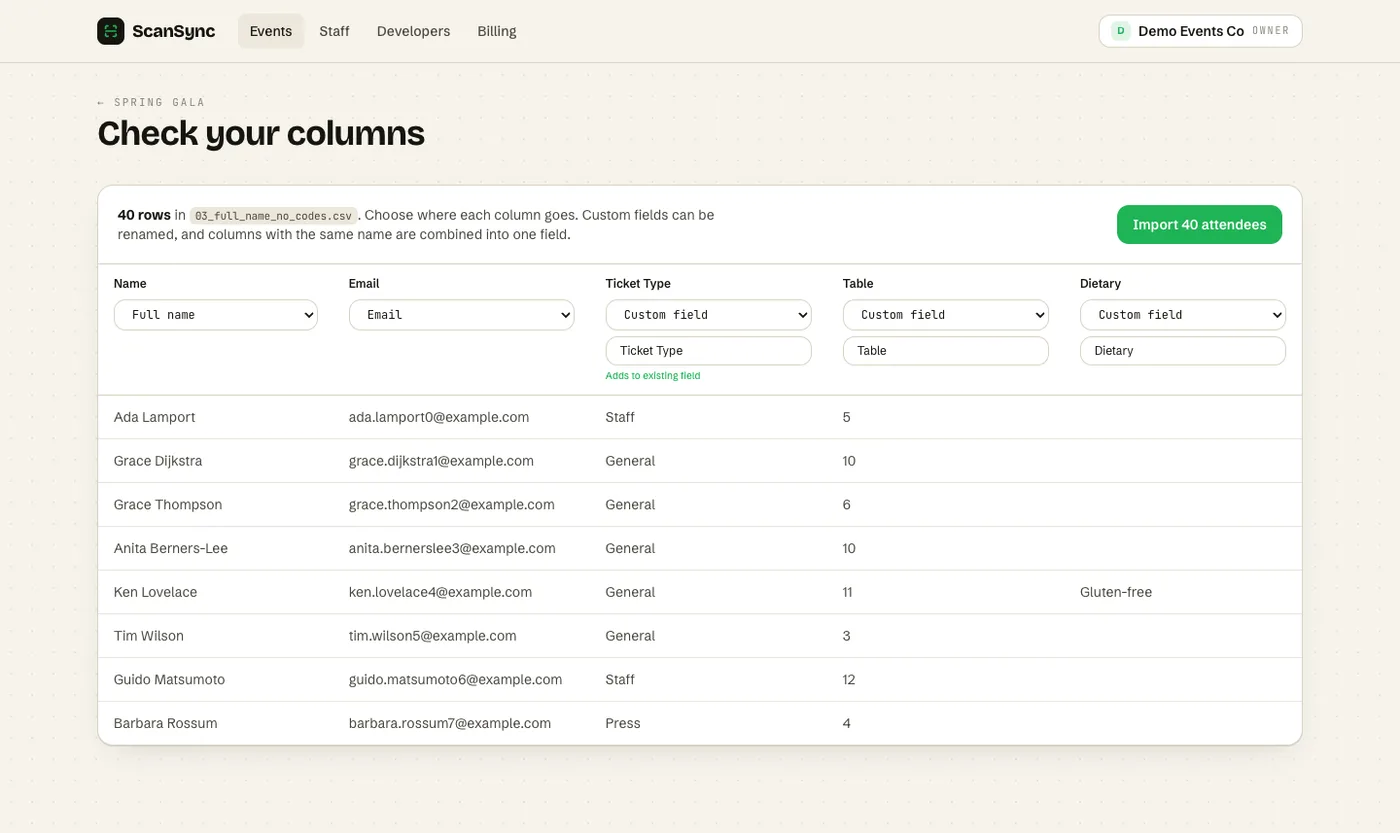 During import, each column is matched to a field, and extra columns can become custom fields with editable names.
After importing, do a test scan of one or two real tickets. If they scan as found, the barcode column is correct.
Step 5: handle late registrations and changes
Registrations rarely stop the day you import. People buy tickets the night before, names get corrected, and ticket types change. A simple routine:
- Export the full, updated list from the ticketing platform.
- Import it again into your check-in tool.
- Let the tool match on ticket code so existing people are updated, not duplicated.
- Do your final re-upload shortly before doors, then sync any scanning devices.
If tickets keep selling during the event, repeat the export and re-upload during a quiet moment rather than at the peak of arrivals. If you need fully automatic syncing, our article on automating check-in with an API and webhooks explains how teams connect systems directly.
How ScanSync handles imported lists
ScanSync is built around this exact workflow:
- Auto-matched columns. Name, first and last name, email, phone, address, QR, barcode, or ticket code, and allowed check-ins are detected automatically. You can rename other columns into custom fields like Ticket Type, Table, or Dietary, and merge columns if needed.
- Existing tickets keep working. Import the barcode column, and ScanSync reads the codes on tickets your attendees already have. It supports QR, Code 128, Code 39, Code 93, EAN-13/EAN-8, UPC-A/UPC-E, PDF417, Aztec, Data Matrix, ITF-14, and Codabar.
- Codes for everyone. Anyone without a code gets a QR code generated.
- Safe re-uploads. Uploading a file with the same codes updates people instead of duplicating them.
- Clear errors. Problems are reported by line number, so you can fix the exact row.
And if you're checking in on phones, the list is saved to the device, so it keeps working even when the venue Wi-Fi doesn't. See checking people in without Wi-Fi for details.
Summary
To export an attendee list from a ticketing platform, download a CSV with one row per ticket and keep the original as a backup. Find the column that matches the exact value in each ticket's barcode, protect it from spreadsheet formatting, and import it as the ticket code so existing tickets keep scanning. Clean the file, map the columns you need, and test-scan a real ticket. For late registrations, re-export and re-import, and let matching on codes update people rather than duplicate them.
Next steps
Grab a test ticket from your current platform and try the barcode check from Step 3. When you're ready to import, you can create a free account and upload your CSV, or see pricing if your event is larger than the free plan's 100 attendees.
Frequently asked questions
How do I export an attendee list from a ticketing platform? +
Most platforms have an attendees, orders, or reports section with a download or export option. Choose CSV if it's offered, and include all ticket holders rather than only buyers if there's a choice.
Will my attendees' existing tickets still work in a different check-in app? +
They can, as long as you import the column that contains the exact code printed in each ticket's barcode or QR code. The check-in app then matches the scanned value to that column.
What happens when new people register after I've imported the list? +
Export the updated list and import it again. If your check-in tool matches on ticket code, existing attendees are updated and only new people are added.
Check people in the simple way
Upload your list, scan at the door, and watch arrivals live. Free for your first event.