VIP Check-In Lane Setup: Custom Fields, Lanes and Badge Pickup
ScanSync Team · · 7 min read
A VIP check-in lane is one of the simplest ways to make important guests feel looked after, and one of the easiest to get wrong. If staff can't tell who is a VIP, the lane fills with general admission guests and the whole idea falls apart. This guide walks through how to segment your attendees with custom fields, split the entrance into lanes, watch each lane on a filtered dashboard, and run a badge pickup flow that doesn't create a second queue.
Why separate lanes are worth the effort
Most entrances have one bottleneck: the point where a person has to be identified and let in. Splitting that point into lanes helps in two ways. First, it spreads the load, so one slow interaction doesn't hold up everyone behind it. Second, it lets you tailor the experience. A sponsor might need a welcome pack, a speaker might need to be walked to the green room, and a table guest at a dinner needs to know where to sit.
Lanes only work if the information needed to sort people is already in your guest list. That's where custom fields come in. If you're still building your overall process, start with the complete guide to event check-in and come back here for the segmentation details.
Step 1: Define segments and store them in custom fields
Decide your segments before you import
Before you touch the attendee list, write down the groups you actually need to treat differently. Keep it short. Every extra segment is another sign, another staff briefing and another chance for confusion.
A common set looks like this:
| Field | Example values | What it changes at the door |
|---|---|---|
| Ticket Type | VIP, General, Student | Which lane they use |
| Sponsor | Company name or blank | Welcome pack, sponsor badge |
| Speaker | Yes or blank | Speaker badge, escort to green room |
| Table | 1-30 | Seating card handed at entry |
| Badge Pickup | Pre-printed, On-site | Whether they collect a badge |
If a field doesn't change what staff do, leave it out of the door process. It can still live in your list for reporting later.
Put each segment in a custom field
Your ticketing platform or registration form probably already exports a ticket type column. When you import the CSV into ScanSync, standard columns like name, email and ticket code are matched automatically, and any other column can be kept as a custom field with a name you choose, such as Ticket Type, Sponsor or Table. You can also merge columns, which helps when, for example, first name and last name arrive separately. If you're moving from another system, the guide to moving your list from a ticketing platform covers what to export.
A few habits keep the data clean:
- Use consistent values. "VIP", "vip" and "V.I.P." will look like three different groups when you filter. Clean them in the spreadsheet first.
- Leave non-matching rows blank rather than writing "No" or "N/A", so filters stay readable.
- Re-upload instead of editing by hand. If late VIPs are added, update the spreadsheet and import it again. People with the same codes are updated rather than duplicated.
- Check the import report. Errors are listed by line number, so you can fix the exact rows before the event.
Our walkthrough on importing an attendee list from CSV without errors goes deeper on column mapping.
Step 2: Design the physical lanes
The data tells you who goes where; the layout makes it happen. A few practical points:
- Signage first. Put lane signs where people can read them before they choose a queue, not at the desk itself. Use the same words as your tickets ("VIP", "Speakers and Sponsors").
- Give the VIP lane its own entry point if the venue allows it. A rope line a few metres apart from general admission is often enough.
- Staff each lane separately. One scanner per lane, plus a greeter or badge handler for VIP and speaker lanes. Don't plan for lanes to share people at peak.
- Create a shared help desk. Anyone whose code doesn't scan, whose name is misspelled or who insists they should be on the list goes here. This keeps the VIP lane fast, which is the whole point.
For a sense of how many people each lane needs, the event check-in staffing guide has a simple way to size it. As a rule of thumb, size the VIP lane from the number of VIPs you expect in the busiest 15 minutes, not the total number of VIPs.
Step 3: Scan and look up by segment
At each lane, staff scan the guest's code on a phone or laptop. Every device checks against the same live list, so a guest who scanned at the VIP lane will show as already checked in if they try the general lane too.
When a guest has no ticket with them, staff can look them up by name, code, email, or a custom field value on the iPhone app. The attendee detail shows their status and ticket type, so the person at the VIP lane can confirm "Yes, you're on the VIP list" in a few seconds. Staff with the Scanner role can scan and look up guests but never see emails, phone numbers or addresses, which is useful when lanes are run by volunteers.
If a guest arrives at the wrong lane, decide in advance what happens. For most events the kindest answer is to check them in anyway and point them to where they need to go next, rather than sending them back to the end of another queue.
Step 4: Watch each lane on a filtered dashboard
During doors, a manager should be watching numbers, not scanning. The live dashboard shows checked in, still to come and the percentage arrived, and updates on every open screen without refreshing. Filter the attendee table by a custom field to see one segment at a time.
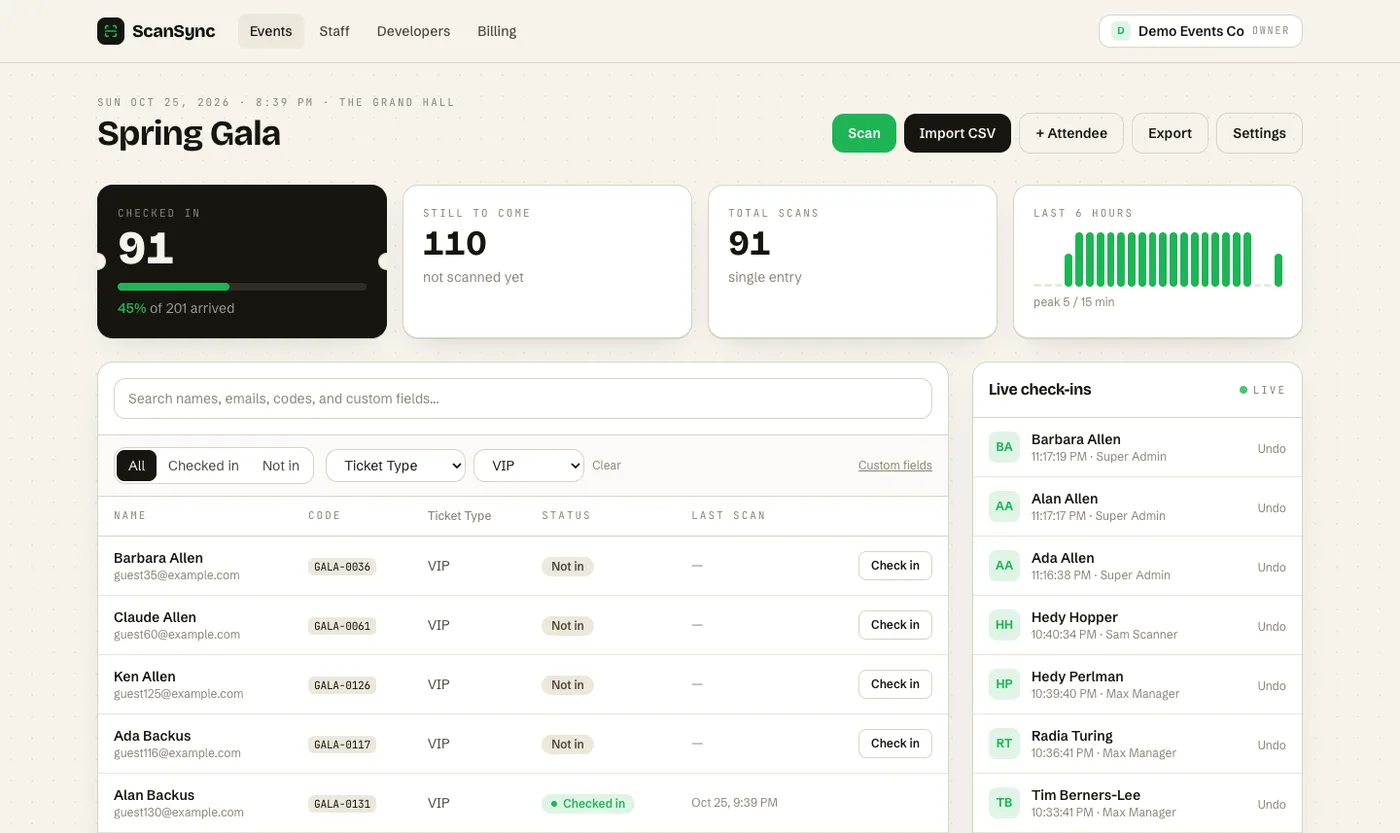 Filtering by Ticket Type shows exactly which VIPs have arrived and who is still to come.
This view answers practical questions quickly:
- Are most VIPs already in, so the VIP lane staff can help elsewhere?
- Which speakers haven't arrived yet, so someone can call them?
- Which tables are still mostly empty when dinner is about to be served?
For more on reading these numbers during the event, see live attendance tracking.
Step 5: Run badge pickup without a second queue
Badge pickup is where lanes often fall apart: guests are checked in quickly, then wait again at a badge table. A few ways to avoid that:
- Combine scan and handover. The person who scans also hands over the badge. Sort badges alphabetically by surname, per lane, so they can be found in seconds.
- Pre-print where you can. Use a Badge Pickup field to mark who has a pre-printed badge and who needs one made on site, and send on-site printing to the help desk.
- Colour-code by segment. A different lanyard or badge colour for VIP, Speaker and Sponsor lets staff inside the venue recognise people without asking. The idea of a badge as a visible identifier is old, and it still works.
- Count leftovers. Badges left on the table at the end of the night are a rough no-show list for that segment. Compare it against the dashboard to double-check.
Summary
A VIP check-in lane works when the sorting happens before the event, not at the desk. Decide a small set of segments, store them in custom fields during import, and give each lane its own signs, staff and badge stock. During doors, filter the dashboard by field to see which group is lagging, and keep a shared help desk so edge cases never slow down the lanes that matter most.
Next steps
If you'd like to try this with your own list, you can create a free account and import a CSV with a Ticket Type column to see how filtering works. To compare plans for larger events with more staff seats, see pricing.
Frequently asked questions
How do you set up a VIP check-in lane at an event? +
Tag VIP guests in your attendee list with a field such as Ticket Type, give them a separately signed entrance with dedicated staff, and make sure those staff can look guests up quickly. Keep the VIP lane short by sending any problems to a shared help desk.
Should VIPs and general admission use different scanning devices? +
They can share the same event and guest list; the separation is physical, not technical. Each lane simply has its own scanning phone or laptop, and every device checks against the same live list so nobody can enter twice.
How many staff does a VIP lane need? +
Usually fewer than general admission, because the group is smaller, but plan at least one scanner and one greeter or badge handler. Size it from the number of VIP guests you expect in the busiest 15 minutes, not the total.
Check people in the simple way
Upload your list, scan at the door, and watch arrivals live. Free for your first event.