Import Attendee List CSV Files Without Errors: A Practical Guide
ScanSync Team · · 6 min read

If you need to import an attendee list CSV into a check-in tool, a few minutes of preparation saves a lot of stress at the door. Most import problems come from the same handful of causes: unclear headers, the wrong encoding, duplicate rows, and ticket codes mangled by a spreadsheet. This guide shows how to prepare the file, which columns to include, how to handle codes and re-uploads, and how to fix the errors you're most likely to see.
Why CSV, and what makes a good file
CSV (comma-separated values) is a plain-text format that almost every spreadsheet, ticketing platform, and CRM can export. Each line is one record, and commas separate the fields. There is a common specification, RFC 4180, which describes things like quoting fields that contain commas.
A good attendee CSV has:
- One header row at the top, with a name for each column
- One row per attendee, with no blank rows or subtotal lines
- No merged cells, notes, or formatting that won't survive export
- Consistent data in each column, for example every email in the email column
If you exported from a ticketing platform, open the file and delete any summary rows or extra header blocks before importing. Our guide on moving your list from a ticketing platform covers platform exports specifically.
Choosing your columns
Include what staff need at the door and what you need afterwards, and leave out the rest. Collecting less is also good practice for privacy; see our attendee data privacy and GDPR basics.
| Column | Required? | Notes |
|---|---|---|
| Full name, or First name + Last name | Yes | Used for lookup at the door |
| Recommended | Lets you send tickets and find people quickly | |
| Ticket code (QR or barcode) | Optional | Keep existing codes; leave blank to generate new ones |
| Allowed check-ins | Optional | For re-entry or multi-day passes |
| Phone, address | Optional | Only if you actually need them |
| Ticket type, table, dietary, etc. | Optional | Useful custom fields for staff |
Use clear header names like "First name", "Email", or "Ticket code". Tools that auto-match columns rely on recognisable names, and clear headers also help anyone else who opens the file.
Encoding: UTF-8 vs older Excel formats
Encoding decides how characters are stored as bytes. If the encoding is wrong, a name like "José Müller" can turn into strings of odd symbols after import.
- UTF-8 handles virtually every language and is the safest choice.
- Older Excel "CSV" exports on some systems use a regional encoding instead of UTF-8, which can break accented and non-Latin characters.
To be safe:
- In Excel, use File > Save As > CSV UTF-8 (Comma delimited).
- In Google Sheets, use File > Download > Comma-separated values; it exports UTF-8.
- In Numbers on Mac, use File > Export To > CSV and choose Unicode (UTF-8).
- After importing, spot-check a few names with accents or non-Latin characters.
Handling duplicates, codes, and re-uploads
Duplicates
Duplicate rows happen when people register twice, or when you merge lists from several sources. Before importing:
- Sort by email and look for repeats.
- Use your spreadsheet's "remove duplicates" feature on the email or code column.
- Decide which record to keep if details differ, for example the most recent.
Ticket codes
If your guests already have tickets, the code column is the most important one in the file. Protect it:
- Format the column as Text before pasting codes. Spreadsheets often strip leading zeros from numbers like
00012345or show long numbers as1.23E+11. - Don't edit codes by hand. One wrong character means the ticket won't scan.
- Keep every code unique. Two people with the same code will cause "already checked in" results.
If you're unsure which code types your scanner reads, see QR codes vs barcodes for tickets.
Re-uploads and updates
Lists change right up to the event: late registrations, name corrections, upgrades. The question is whether uploading a new file will create duplicates. With tools that match on ticket code, a re-upload updates existing people and adds new ones, so you can keep working from one master spreadsheet and import it again whenever it changes. Check how your tool behaves before relying on it, and always keep the master file as your source of truth.
Common import errors and how to fix them
Good importers report errors by line number so you can find them quickly. Here are the usual culprits:
- Missing name. A row has no name in any name column. Fill it in or delete the row.
- Duplicate code in the file. Two rows share a ticket code. Find both and correct one.
- Garbled characters. The file isn't UTF-8. Re-save it as CSV UTF-8 and import again.
- Columns shifted. A field contains an unquoted comma, pushing data into the next column. Re-export from the spreadsheet rather than editing the CSV in a text editor.
- Wrong delimiter. Some regional settings export with semicolons. Change the export setting or your system's list separator to a comma.
- Invalid allowed check-ins. The column contains text like "two" instead of a number.
Importing into ScanSync
In ScanSync, you upload the CSV and see a preview where each column is matched automatically to fields like name, first and last name, email, phone, address, ticket code, and allowed check-ins. Anything else can be turned into a custom field, such as Ticket Type, Table, or Dietary, and you can rename it or merge columns before importing.
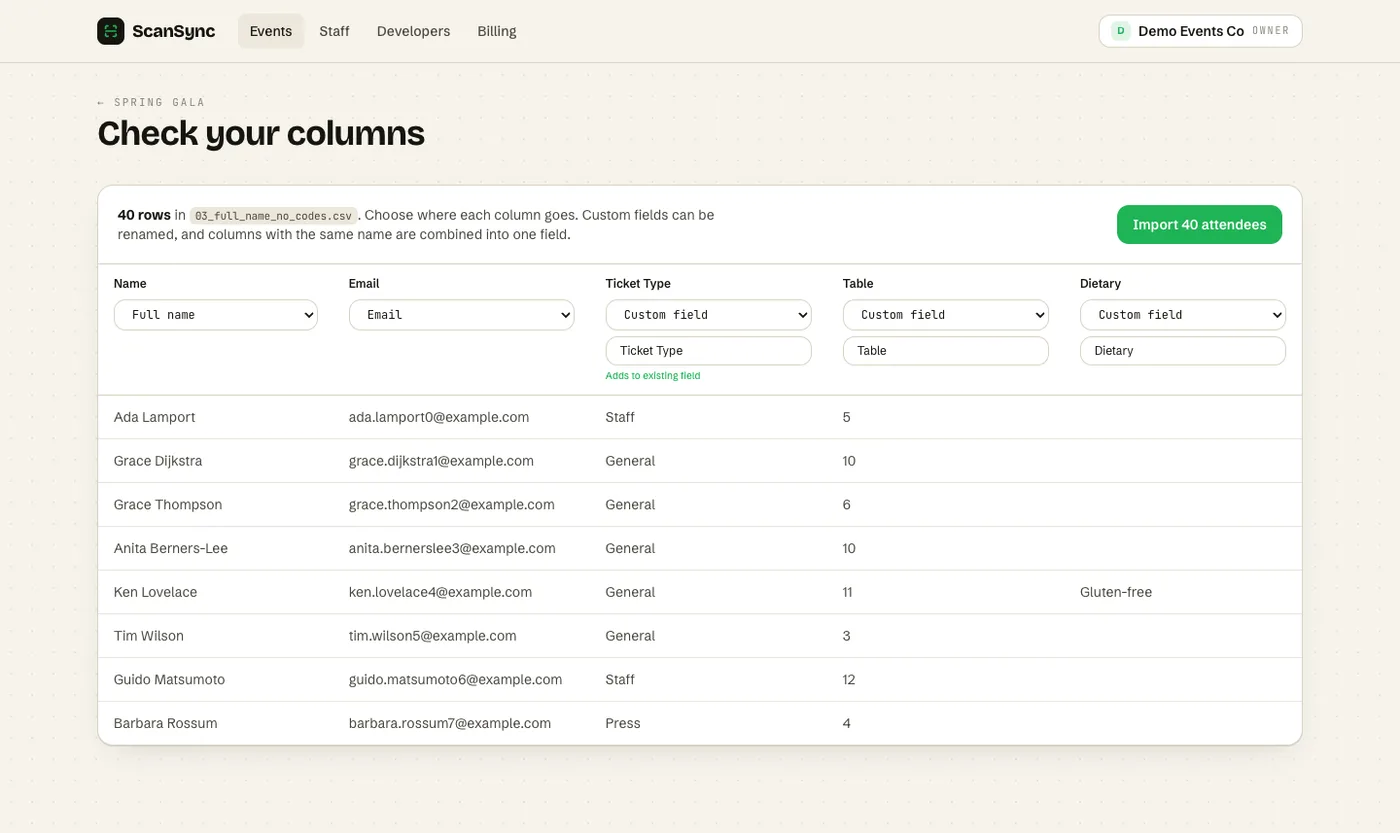 The import preview shows how each column will be mapped before anything is saved.
Anyone without a code gets a QR code generated, and existing codes from other platforms keep working. Re-uploading a file with the same codes updates people instead of duplicating them, and any errors are listed by line number. You can later use custom fields to run VIP lanes and badge pickup. For the bigger picture, read our complete guide to event check-in.
Summary
A clean import starts with a simple file: one header row, one row per attendee, and clear column names. Save as CSV UTF-8 to protect names, format code columns as text, and remove duplicates first. Use a tool that updates people on re-upload so late changes don't create duplicates. When errors appear, use the line numbers to fix the original spreadsheet and import again.
Next steps
Try importing a copy of your list to see how the columns map. You can create a free account and test with up to 100 attendees, or see pricing for larger lists.
Frequently asked questions
How do I save an Excel file as a UTF-8 CSV? +
In recent versions of Excel, choose File, Save As, and pick 'CSV UTF-8 (Comma delimited)'. Older versions may only offer plain 'CSV', which can use a different encoding and break accented characters; Google Sheets exports CSV as UTF-8 by default.
Why do my barcodes lose their leading zeros in Excel? +
Excel treats long numbers as numeric values, which removes leading zeros and may show them in scientific notation. Format the column as Text before pasting codes, or import the CSV into Excel with the column type set to Text.
What happens if I upload the same attendee list twice? +
It depends on the tool. In ScanSync, attendees whose codes match existing records are updated instead of duplicated, so you can safely re-upload a corrected file.
Check people in the simple way
Upload your list, scan at the door, and watch arrivals live. Free for your first event.