School Event Check-In: Graduations, Open Days and Student IDs
ScanSync Team · · 6 min read
School event check-in has a few quirks that general event advice doesn't cover. Your attendees include students who already carry ID cards, families who visit once a year, and staff or student volunteers who need clear, limited jobs. Safeguarding rules matter, and so does accessibility. This guide covers how to plan check-in for graduations, orientation, open days and assemblies, including using student IDs as barcodes, issuing guest tickets, setting staff roles, protecting contact details and keeping entry accessible for everyone.
Match the check-in approach to the event
Different school events need different levels of control. A quick way to decide:
| Event | Who arrives | What check-in needs to do |
|---|---|---|
| Graduation | Graduates plus limited guests | Enforce guest limits, seat by group |
| Orientation / welcome week | New students, sometimes over several days | Confirm arrival, allow re-entry |
| Open day | Prospective students and families | Count visitors, follow up registrations |
| Assembly or exam session | Enrolled students | Take attendance quickly |
The basics are the same for all of them: one up-to-date list, a way to scan or look people up, and live numbers. If you're setting this up for the first time, the complete guide to event check-in explains the core process.
Use student IDs as check-in codes
Many student ID cards already carry a barcode or QR code, often a linear format such as Code 128 or Code 39. If you import each student's ID number as their code, scanning the card checks them in, with no extra tickets to send.
ScanSync reads QR, Code 128, Code 39, Code 93, Codabar, PDF417, Data Matrix, Aztec and other common formats, so existing cards usually work. To set it up:
- Export the student list from your records system with name, ID number and any grouping you need (year, course, house).
- Check what the barcode actually contains. Scan a card into a text editor using a USB scanner. Sometimes the barcode holds the ID with a prefix or extra digits, and your import needs to match exactly.
- Import the CSV and map the ID column to the ticket code. Extra columns like Year or Course become custom fields you can filter by later.
- Test five or six real cards before the day, including an old one and a replacement card.
Students who forget their card can be looked up by name. For more on how codes differ, see QR codes vs barcodes for tickets.
Guest tickets for graduations and family events
Families don't have student IDs, so they need tickets. A clear approach:
- One code per guest, not one per family. It's easier to scan and gives an accurate headcount. Anyone imported without a code gets a QR code generated automatically.
- Link guests to the student with a custom field such as "Guest of", so staff can resolve questions at the door.
- Set the limit in the data. If each graduate gets three guests, only create three guest rows per graduate.
- Decide on re-entry. Families often step out during long ceremonies. Allowed check-ins can be set per event, such as 2 for one re-entry, and overridden for individual guests who need more.
For multi-day orientation or welcome weeks, the guide to multi-day events and re-entry covers how to set limits across days.
Staff roles and safeguarding contact details
School events often rely on student ambassadors, parent volunteers or temporary staff. Give each person only the access they need.
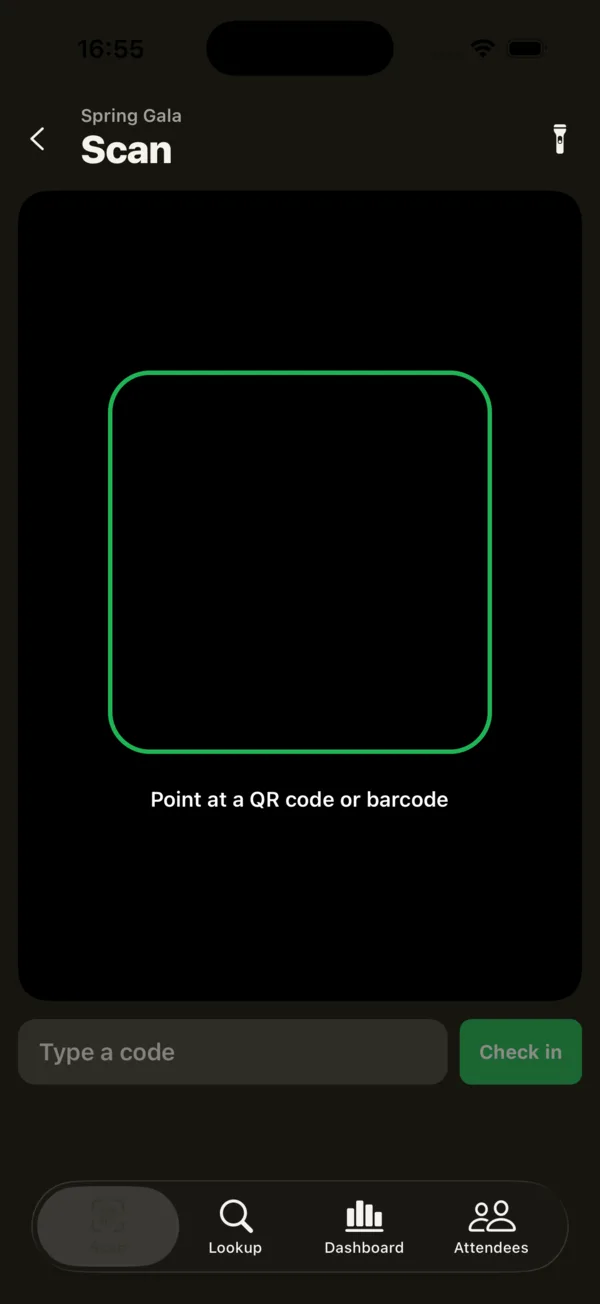 Volunteers with scan-only access can scan, type a code or look someone up, and nothing more.
ScanSync has three roles:
- Owner: billing, staff, events, API keys and webhooks. Usually one or two staff members.
- Manager: importing lists, watching the dashboard, undoing scans and changing limits. Event leads and senior staff.
- Scanner: scanning and lookup only. Scanners never receive attendee emails, phone numbers or addresses.
That last point matters for safeguarding. A student volunteer at the door doesn't need parents' phone numbers. Keep contact details in the email and phone fields, which scanners don't see, and avoid putting sensitive information such as medical notes or custody arrangements into custom fields, since those are meant for operational details like Year or Guest of. Owners can also limit each staff member to specific events, so a volunteer for the open day doesn't have access to the graduation list.
Your school or university will have its own data protection and safeguarding policies, and those come first. For general background, see attendee data privacy and GDPR basics, and check with your data protection lead or a lawyer for specifics.
Accessibility at the door
School events bring together people of every age and ability, including grandparents at graduations and prospective students with access needs at open days. Plan for:
- Step-free entry with check-in at the accessible entrance, not just the main door.
- A seated check-in point so nobody has to stand in a long queue.
- Name lookup as standard for people who can't easily show a phone ticket or who have a printed ticket that won't scan.
- Clear, large signage and staff who know where accessible seating is.
- Accessible ticket emails and registration pages. The WCAG guidelines are the widely used reference for digital accessibility.
In the US, the ADA sets out accessibility requirements that apply to many schools and venues; other countries have their own rules.
Equipment and the day itself
Most school events don't need dedicated hardware. Staff phones work well, and a laptop with a USB barcode scanner is handy for a fixed registration desk. The guide to using a phone as a ticket scanner covers setup.
A few day-of tips:
- Download the list before doors in case the campus Wi-Fi is overloaded. The iPhone app saves the attendee list on the phone and queues offline check-ins, sending them when it reconnects. More in checking people in without Wi-Fi.
- Brief volunteers in five minutes: what green, amber and red results mean, and where to send problems.
- Have a manager watching the dashboard, so they can see if one door is busier and move people.
- Keep a help desk for lost cards, missing guests and name changes.
Summary
Good school event check-in starts with the data you already have: student ID numbers as codes, and clearly limited guest tickets for families. Give volunteers scan-only access so contact details stay protected, and follow your institution's safeguarding and data policies. Plan accessible entry and name lookup from the start, and download the list before doors in case the Wi-Fi struggles.
Next steps
If you'd like to test student ID scanning with a few real cards, you can create a free account and import a small list. For whole-school or campus-wide events with many staff, see pricing.
Frequently asked questions
Can student ID cards be used for event check-in? +
Often, yes. If the ID card has a barcode or QR code and you import the matching ID numbers as each student's code, scanning the card checks them in. Test a few cards with your scanner before the event.
How do you manage guest tickets for a graduation? +
Give each guest their own ticket or code, linked to the student in a custom field, and decide in advance how many guests each student may bring. A separate code per guest is easier to scan and count than one shared ticket.
Should student volunteers see parent contact details at check-in? +
Generally no. Scan-only access should show enough to confirm a person is on the list without exposing phone numbers, emails or addresses. Check your school's safeguarding and data policies for the specifics.
Check people in the simple way
Upload your list, scan at the door, and watch arrivals live. Free for your first event.